 XC Techs Knowledge Base We Are Here to Help You In Style

Related Articles




We’ve seen a lot of karaoke add-ons created for XBMC in the past, but never have we actually found a karaoke add-on to be truly useful before this one. It basically turns your living room into a karaoke bar, with the biggest library of songs we’ve seen at any karaoke bar in the past, and we’ve been to quite a few KTV in our time. This add-on is so impressive that even if you aren’t at all into karaoke or anything like that, you should still go ahead and install it just so you can see what you’re missing. This could very well turn out to be your new favorite thing to do, it’s not just another cheap karaoke add-on, it’s a very elaborate system that ensures your utmost enjoyment, as it should be. Hopefully you’ll have a few too many drinks one of these nights and turn it into a fun activity with friends or loved ones.
A Must Have add-on for everyone

Requirements
- Fusion Installer Already Configured
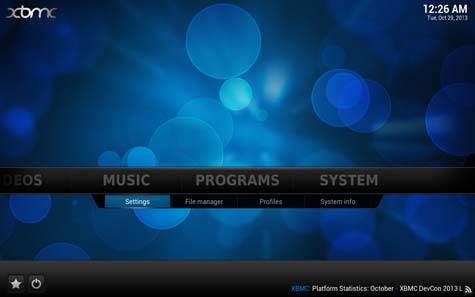
1: Navigate to the “Settings” tab under the “SYSTEM” menu.
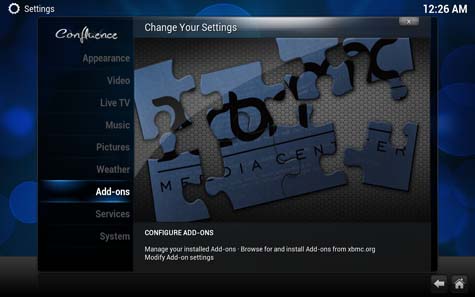
2: Choose the “Add-ons” menu from the sidebar.
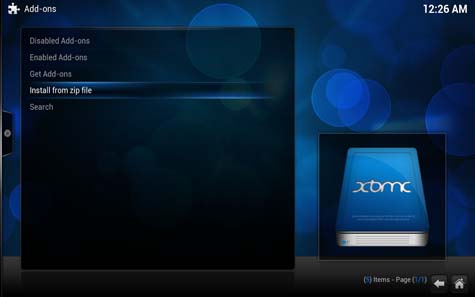
3: Click on the “Install from zip file” option.
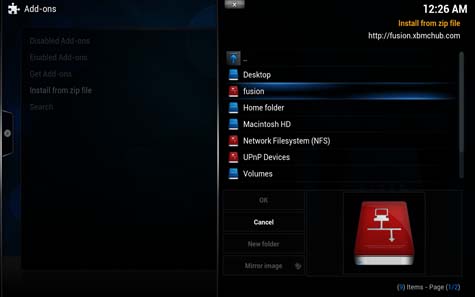
4: Open the “fusion” installer folder. You should already have the Fusion Installer configured, otherwise see the requirements above for further instructions.
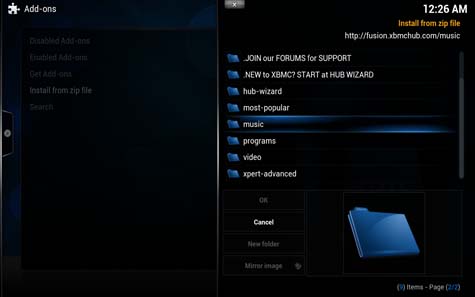
5: Click on the “music” folder.
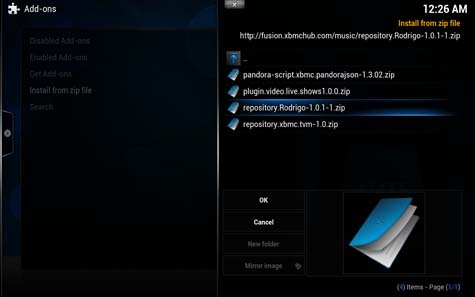
6: Choose “repository.Rodrigo-1.0.1-1.zip” from the listing.
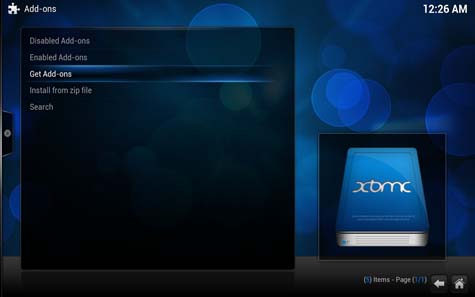
7: Click the “Get Add-ons” menu option.
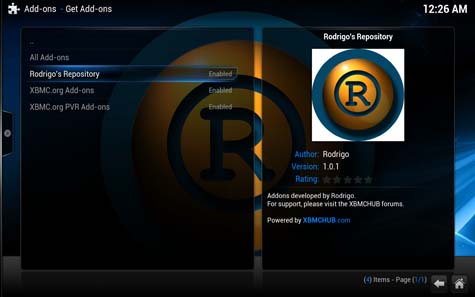
8: Choose “Rodrigo’s Repository” from the listing.
9: Click on the “Music Add-ons” listing.
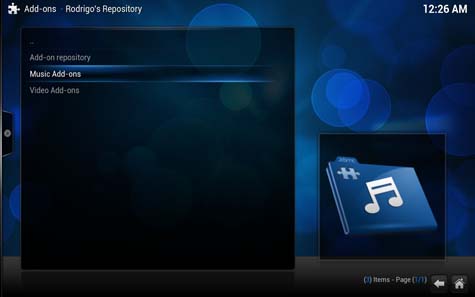
10: Choose the “XBMC Karaoke add-on” from the listing.
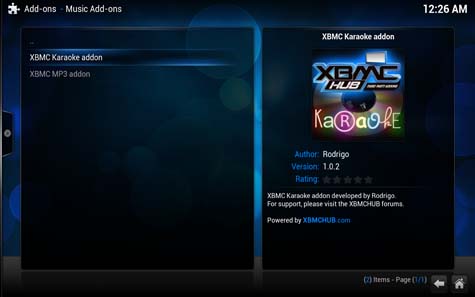
11: Select the “Install” button and wait a few seconds.
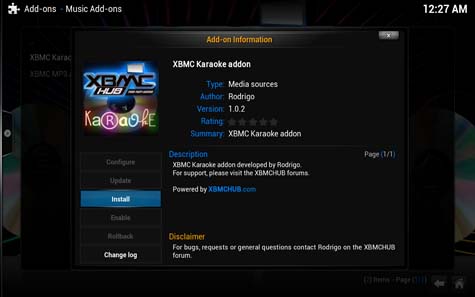
12: Go back to the main “Settings” menu under the “SYSTEM” tab.
13: Choose the “Music” settings this time.
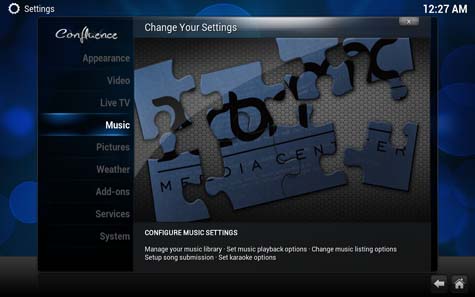
14: Go into the “Karaoke” settings section.
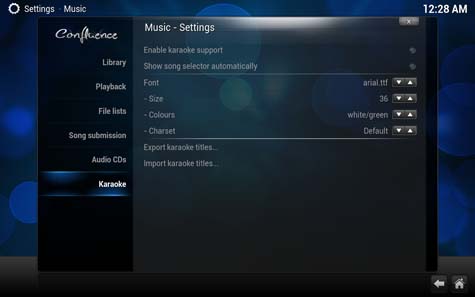
15: Toggle “ON” the “Enable karaoke support” option on the left side by clicking it.
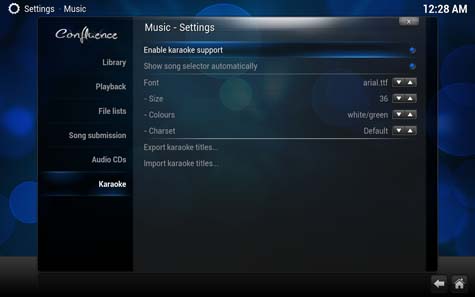
16: Toggle “ON” the “Show song selector automatically” underneath the previous by clicking it.
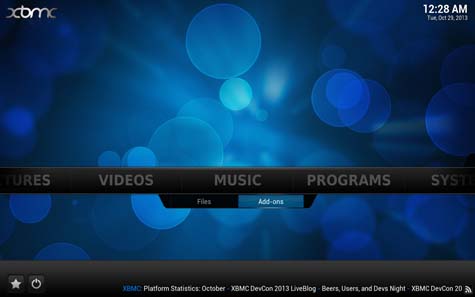
17: Return to the main menu, then navigate to the “Add-ons” tab under the “MUSIC” heading.
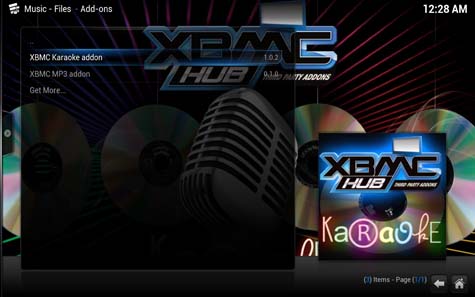
18: Click on the “XBMC Karaoke” add-on to launch it.
19: Navigate the add-on as you wish, we’ve chosen the “Search by artist name” option as an example.
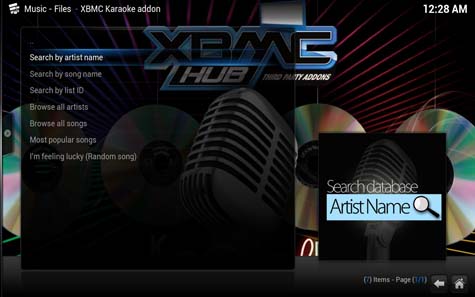
20: Type part of the artist’s name, then press the done button. We’ve typed “Lana” for this example.
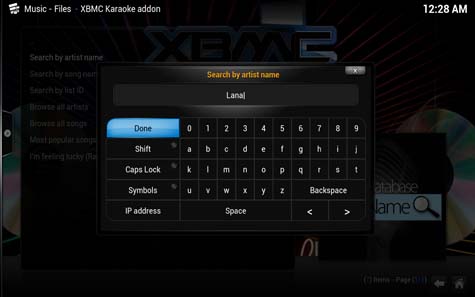
21: Choose the artist you wish to sing along to, we’ve gone with “Lana Del Rey & Cedric Gervais” for this one. Sometimes you’ll have more than one spelling of the same artist, check them all for different songs.
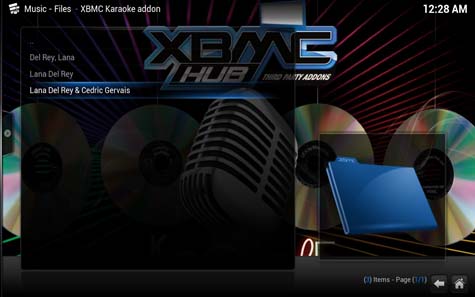
22: Select the song you want to sing, we’ve chosen “Lana Del Rey & Cedric Gervais – Summertime Sadness” this time.

23: Wait a few seconds for the song to prepare, it should be very quick.
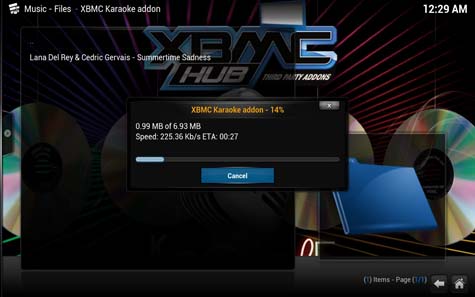
24: Sing your heart out!